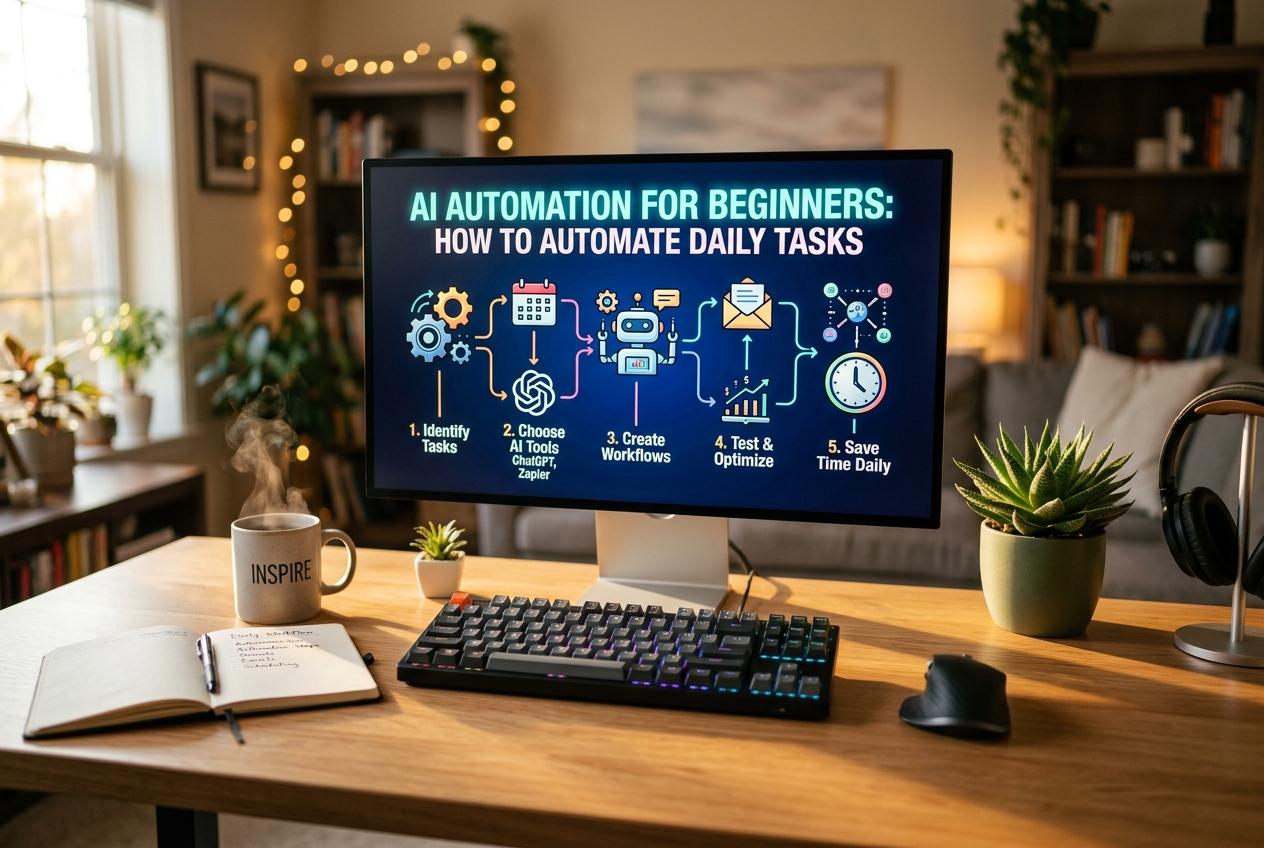
AI Automation for Beginners How to Automate Daily Tasks
Published · Updated
Have you ever spent too much time replying to emails, organizing your schedule, updating spreadsheets, or completing the same tasks every day? These small responsibilities may seem harmless, but…
Have you ever spent too much time replying to emails, organizing your schedule, updating spreadsheets, or completing the same tasks every day? These small responsibilities may seem harmless, but together they can consume hours that could be spent on more important work.
This is where artificial intelligence (AI) and workflow automation can make a real difference. With the right AI productivity tools, you can automate repetitive tasks, organize information, create content, manage reminders, and connect different applications without necessarily knowing how to code.
The best part is that you do not need to be a technology expert to get started. Many modern AI automation tools allow you to describe what you want in plain language and build workflows using simple visual interfaces.
In this beginner’s guide, you will learn how to automate daily tasks with AI, which tools to consider, how to create your first automated workflow, and how to use automation safely and effectively.
What Is AI Task Automation?
AI task automation is the process of using artificial intelligence and software workflows to handle repetitive activities with less manual effort. Instead of completing every step yourself, you create a system that performs specific actions automatically when a particular event occurs or at a scheduled time.
Traditional automation usually follows predefined rules. For example, a calendar application might send you a reminder 15 minutes before a meeting. AI-powered automation can go further by summarizing meeting notes, categorizing incoming emails, extracting information from documents, or drafting a response based on the content of a message.
When combined, AI and workflow automation can help you manage tasks that involve both predictable steps and information that requires interpretation.
For example, imagine receiving a customer inquiry through an online form. An automated workflow could save the inquiry in a spreadsheet, use AI to summarize the message, categorize the request, and notify the appropriate team member.
Tools such as Zapier and n8n support workflows that connect applications and execute actions based on triggers. Some workflows can also incorporate AI for tasks such as text processing and content generation.
Why Should You Automate Daily Tasks With AI?
AI automation is not just for large companies or software developers. Students, freelancers, content creators, office workers, and small business owners can all benefit from automating repetitive work.
Here are some of the main advantages.
1. Save Time on Repetitive Work
Tasks such as formatting documents, sorting information, creating routine reports, and organizing incoming requests often follow predictable patterns. Automating these activities reduces the need to repeat the same steps manually.
2. Improve Productivity and Focus
When routine work takes less time, you can focus on activities that require creativity, decision-making, communication, and problem-solving. AI productivity tools can also help you organize priorities and turn large projects into manageable tasks.
3. Reduce Manual Errors
Automation can reduce mistakes caused by copying information between applications, forgetting routine steps, or using inconsistent formats. However, workflows still need testing because incorrect rules or AI-generated information can introduce new errors.
4. Connect Different Applications
Workflow automation platforms can connect compatible email services, spreadsheets, calendars, project management apps, and other business tools. This reduces the need to switch between applications or enter the same information repeatedly.
5. Make Everyday Work More Consistent
Once a workflow is configured correctly, it can follow the same process each time it runs. This is especially useful for recurring reports, lead management, content planning, and administrative tasks.
10 Daily Tasks You Can Automate With AI
Before creating your first workflow, identify the tasks that take up the most time. These examples are good starting points for beginners.
1. Email Management and Reply Drafting
AI can summarize long email threads, identify important messages, categorize requests, and draft replies. You can combine these capabilities with email rules or automation platforms to organize your inbox.
For example, an incoming customer inquiry could be labeled according to its topic and summarized for quick review.
Important: Start with automatic labeling and draft creation rather than allowing AI to send every email without your approval.
2. Calendar Scheduling and Meeting Preparation
AI assistants can help summarize meeting agendas, organize preparation notes, and turn meeting discussions into action items. Calendar automation can also send reminders or create tasks when supported by your connected applications.
Always check time zones, availability, and meeting details before confirming important appointments.
3. Daily To-Do Lists
You can use AI to turn a collection of notes, emails, or project updates into an organized task list. Ask it to group tasks by priority, deadline, or project.
A recurring workflow can then send your task summary to a preferred location, such as a project management app or messaging service.
4. Content Creation and Social Media Planning
Content creators and marketers can use AI to brainstorm article ideas, draft social media captions, summarize research, and prepare content calendars.
For example, you could maintain a spreadsheet of content topics and use an AI workflow to create a first-draft outline for each new topic.
Human review remains essential for accuracy, originality, brand voice, and factual claims.
5. Data Entry and Spreadsheet Updates
AI automation can extract information from supported forms or documents and help place it into structured fields. Workflow tools can then add rows to spreadsheets or update records in connected applications.
This can be useful for tracking customer inquiries, collecting survey responses, managing inventory, or maintaining content calendars.
6. Research and Information Summaries
AI tools can turn lengthy documents, research notes, and meeting transcripts into concise summaries. Automated workflows can organize these summaries and send them to a designated folder or workspace.
Always verify important facts against reliable original sources, especially when the information will be published or used for business decisions.
7. Customer Support
Small businesses can use AI to classify incoming support requests, identify common questions, and draft suggested answers. More advanced systems may route inquiries to the correct team based on predefined conditions.
Sensitive complaints, payment disputes, account access problems, and other high-impact cases should be reviewed by a person.
8. File and Document Organization
Automation can rename files according to a consistent format, move documents into designated folders, and extract basic information when the required integrations are available.
AI can help identify document topics, but you should test the workflow carefully before allowing it to move or modify large numbers of important files.
9. Daily and Weekly Reports
If you regularly collect information from spreadsheets, project management software, or other systems, automation can gather the data and prepare a summary.
AI can turn structured information into a readable report, while the workflow handles data collection and delivery. Check calculations and source records before relying on the final report.
10. Personal Reminders and Routine Planning
You can automate reminders for recurring responsibilities, study sessions, project deadlines, and weekly planning. AI can help prioritize the task, while a calendar or automation platform handles scheduling and notifications.
The goal is not to automate every part of your life. It is to reduce unnecessary repetition while keeping control over important decisions.
How to Automate Daily Tasks With AI: Step-by-Step Guide
You do not need to build a complicated system on your first day. Start with one simple task and improve it gradually.
Step 1: Identify a Repetitive Task
Write down the activities you perform repeatedly during a normal day. Look for tasks that follow a predictable process and do not require constant human judgment.
Good examples include:
Creating a daily task summary.
Saving new form submissions to a spreadsheet.
Receiving a reminder at a specific time.
Organizing emails using clear rules.
Drafting routine content from a predefined template.
Choose one task that happens frequently and causes unnecessary effort.
Step 2: Describe the Process in Plain Language
Before selecting a tool, explain how the task currently works.
For example:
“Whenever a new contact form is submitted, save the person's name, email address, and message in my spreadsheet. Summarize the message using AI and notify me when a new entry is added.”
This description identifies the event that starts the workflow, the information that needs to be processed, and the final actions.
Clear instructions make it easier to build a useful workflow and identify missing steps.
Step 3: Choose the Right AI Automation Tool
Different tools serve different purposes. You may need only an AI assistant for writing and summarization, or you may need a workflow platform that connects multiple applications.
Consider these options:
ChatGPT: Useful for drafting content, summarizing information, brainstorming ideas, and organizing plans.
Zapier: A no-code automation platform for connecting supported applications and triggering actions when events occur.
Make: A visual platform for building workflows across compatible services.
n8n: A flexible workflow automation platform with integrations and AI capabilities, including options for self-hosting.
Google Sheets and calendar tools: Useful destinations for storing information, tracking tasks, and scheduling reminders.
Choose a tool based on your actual task, available integrations, privacy requirements, and budget. Check each provider's current plan limits before committing to a workflow.
Step 4: Build a Simple Workflow
Most workflow automation systems follow a similar structure:
Trigger → Action → AI processing (if needed) → Final action
For example, a content planning workflow might work like this:
Trigger: A new topic is added to a spreadsheet.
Action: The workflow retrieves the topic and its target audience.
AI processing: An AI model creates a draft outline based on your instructions.
Final action: The outline is saved in a document or content management system.
Review: You check the output before using it.
Not every workflow needs AI. If a simple rule can complete the task reliably, there may be no reason to add an AI step.
Step 5: Write Clear AI Instructions
When a workflow uses an AI model, the quality of its instructions matters. Tell the model what it should do, what information it can use, what format it should return, and what it must avoid.
For example, use this prompt to summarize routine emails:
“Summarize the email below in three bullet points. Identify the main request, any deadline, and the next action required. Do not invent missing information. If the email does not contain a deadline, write ‘No deadline specified.’ Return only the summary.”
Specific instructions are usually more useful than vague requests such as “Analyze this email.”
For workflows that process multiple records, request a consistent output format so the results can be stored or used by later steps.
Step 6: Connect Your Apps and Set Permissions
Connect only the applications required for the workflow. Depending on the platform, you may need to authorize access to your email, spreadsheet, calendar, or project management account.
Review the requested permissions before approving them. Avoid granting broad access when a narrower permission is available.
Never include passwords, private access tokens, payment information, or confidential customer details in ordinary AI prompts unless the service and your organization's policies explicitly permit the intended use.
Step 7: Test the Workflow With Sample Data
Do not immediately activate an automation that can send messages, modify important records, or affect customers.
First, run it with a few sample entries. Check whether the trigger works, the information is mapped to the correct fields, the AI follows your instructions, and the final action occurs as expected.
Test unusual cases as well. What happens if a form field is empty? What if the AI returns an unexpected answer? What if the connected application is temporarily unavailable?
Testing helps you catch problems before the workflow becomes part of your daily routine.
Step 8: Activate and Monitor the Automation
After testing, publish or enable the workflow. Confirm that it runs at the correct time or in response to the intended event.
Check the execution history, error notifications, and output quality during the first few days. If the workflow processes important information, keep a manual review step until you are confident that it behaves reliably.
Automation is not a one-time setup. Applications change, permissions expire, and business processes evolve. Periodic reviews help keep your workflows useful.
A Practical Example: Automate Your Daily Work Summary
Imagine you want to receive a short summary of your tasks every morning.
Here is a simple workflow you could build using compatible scheduling, spreadsheet, and AI integrations.
Goal: Receive a daily summary without manually reviewing every task.
Workflow:
A schedule trigger starts the process each morning.
The workflow retrieves tasks from a connected spreadsheet or task management application.
AI groups the tasks into urgent, important, and lower-priority categories using the rules you provide.
The workflow formats the results into a short summary.
The summary is delivered to your chosen destination, such as an email or messaging app.
You could ask the AI to highlight overdue tasks, list today's deadlines, and identify items that need additional information.
Keep the priority rules explicit. For instance, tasks due today may be marked as urgent, while tasks without a deadline should not automatically be treated as low priority.
You can begin with a manually triggered workflow and add a daily schedule once everything works correctly.
Best Practices for Safe and Effective AI Automation
AI automation can save time, but a poorly designed workflow can create additional work. Follow these practices to get better results.
Start Small and Expand Gradually
Automate one process before connecting multiple applications. Once you understand how triggers, actions, and error handling work, you can add more steps.
Keep Humans in the Loop
AI can misunderstand instructions or generate incorrect information. Require human approval for sensitive emails, public content, financial decisions, account changes, and other high-impact actions.
Protect Personal and Business Data
Review the privacy policies and data-handling settings of your chosen services. Share only the information needed for the task, and avoid sending sensitive data to services that are not approved for it.
Set Clear Rules and Limits
Define what the automation can do, when it should run, and when it must stop for human review. Use filters and conditional steps to prevent irrelevant or incomplete data from triggering unwanted actions.
Monitor Errors and Results
Check logs and notifications, and establish a way to recover from failed runs. Measure whether the automation actually saves time and improves quality instead of assuming that every automated process is beneficial.
Common Mistakes Beginners Should Avoid
One common mistake is trying to automate too many tasks at once. This makes troubleshooting difficult and can create a confusing system that is hard to maintain.
Another mistake is trusting AI output without checking it. AI-generated summaries, classifications, and drafts may contain mistakes or miss important details.
Beginners also sometimes overlook subscription limits, app permissions, and integration availability. A workflow may depend on a paid feature or a connection that is not supported by the selected plan.
Finally, avoid automating a process that is already unclear or inefficient. First simplify the steps, decide what a successful result looks like, and then automate the improved process.
Frequently Asked Questions
Can I automate daily tasks with AI for free?
Yes. You can start with free AI assistants, built-in application features, and automation plans that include limited usage. The exact capabilities and limits vary by provider, so confirm current terms before building a workflow that you depend on.
Do I need coding skills to use AI automation tools?
No. Many tools offer visual workflow builders, templates, and AI-assisted setup. Advanced integrations may require APIs, custom code, or technical knowledge, but beginners can start with simple no-code workflows.
What is the best AI tool for automating daily tasks?
There is no single best tool for every situation. ChatGPT can help with writing and information processing, while Zapier, Make, and n8n can connect applications and automate multi-step processes. The right choice depends on your task, integrations, privacy needs, and budget.
Is AI automation safe?
It can be safe when configured carefully, but no tool is risk-free. Use appropriate permissions, protect sensitive information, test workflows, monitor results, and require approval for important actions.
What should I automate first?
Start with a frequent, low-risk task that follows clear rules, such as preparing a daily task summary, organizing form submissions, or drafting routine messages. A small successful workflow is a better starting point than a complicated system.
Final Thoughts
Learning how to automate daily tasks with AI does not require advanced technical skills or a large budget. The most effective approach is to identify one repetitive activity, choose a suitable tool, create a simple workflow, and test it before relying on it.
As you become more comfortable, you can connect additional applications, introduce AI-powered summaries and classifications, and build more advanced workflows for work, study, or personal productivity.
Remember that automation should support your judgment, not replace it. Use AI for repetitive processing, keep human oversight where it matters, and review your workflows regularly. Start with one small improvement today, and build from there.
Never type a real password into a web page. That includes this one. Our tools analyse and generate passwords entirely in your browser and never transmit them — see the about page for how that is implemented.